
Help The platform Security and data
Activate your organization’s encryption
On this page
Before you begin
The option is opened by Bexxo. The wizard then appears on every page for the organization’s administrator and does not close: ask for it to be opened when you are ready. Have ready:
- an authenticator app on your phone (Google Authenticator, Microsoft Authenticator or equivalent);
- a way to store the two passphrases and the recovery code separately;
- a server on your network for the Bexxo Protected agent and the credentials of your SMTP server: without them, no email goes out to your employees;
- a time when your employees can do without the portal: as soon as encryption is active, they can no longer sign in until you have given them an encryption key.
Activation is permanent. Encryption cannot be turned off from the portal, and Bexxo can neither read the encrypted data nor recover your passphrases.
The wizard’s steps
If your account already uses an authenticator app, the wizard skips the first step and numbers the next ones from 1 to 3.
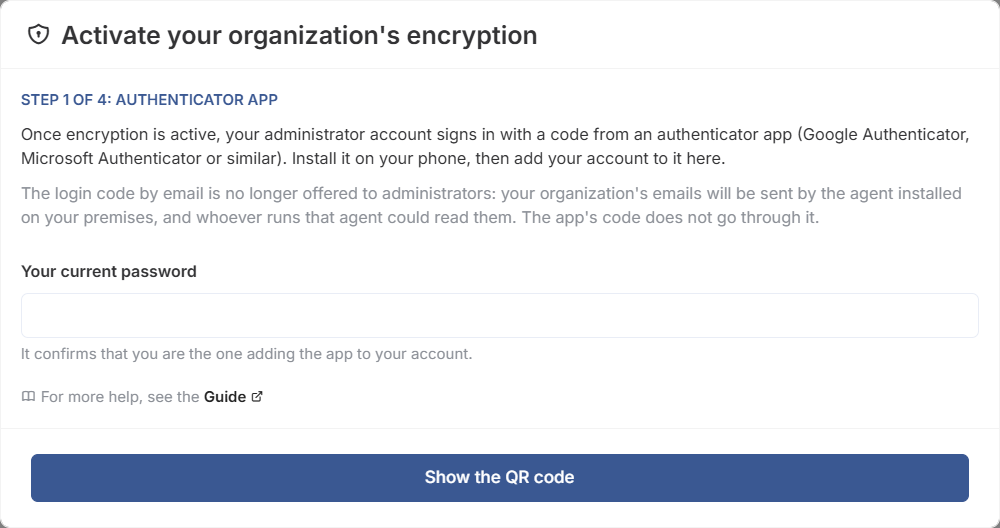
Step 1: the authenticator app
Once encryption is active, the organization’s administrator signs in with the code from their app, and no longer with a code received by email: this email is sent by the agent, and the person who manages the agent could read it.
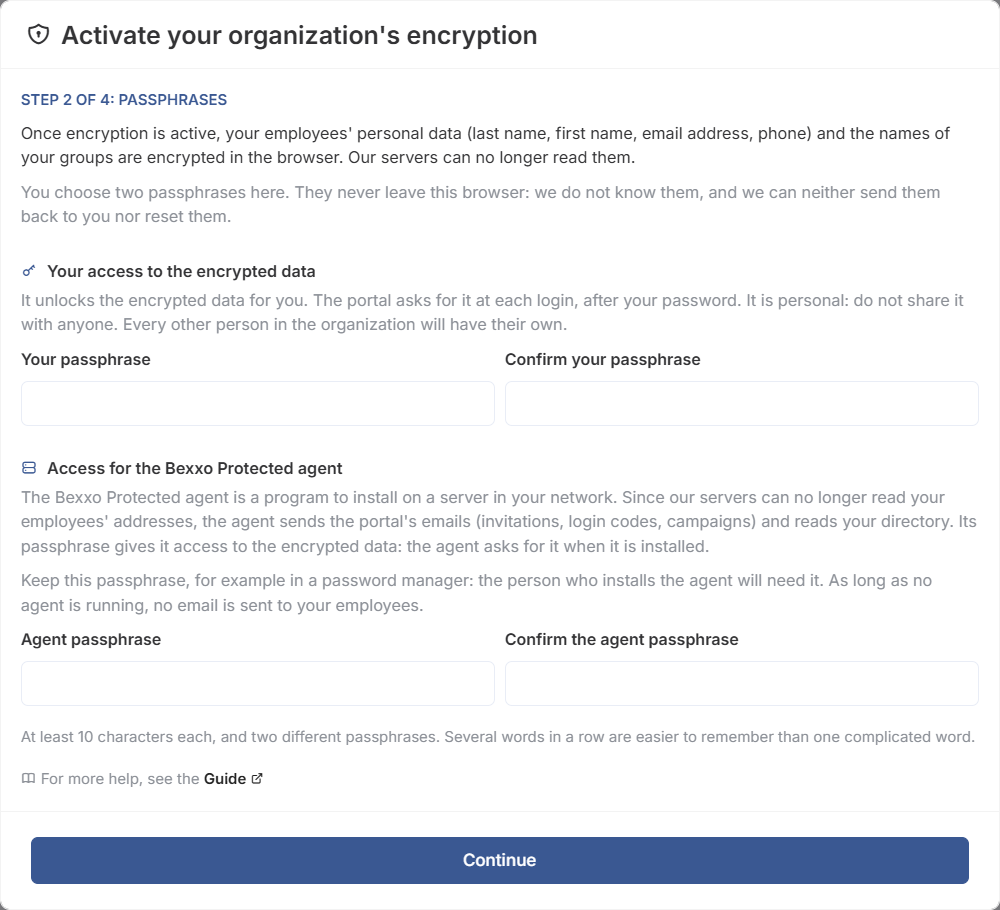
Step 2: the passphrases
Yours is requested at every sign-in. The agent’s is entered on the server where it runs, often by another person: it must therefore be different from yours.
Step 3: the recovery code
This code is the last resort if no administrator can enter their passphrase any more. It is shown only once: keep it outside the portal, separate from the passphrases.
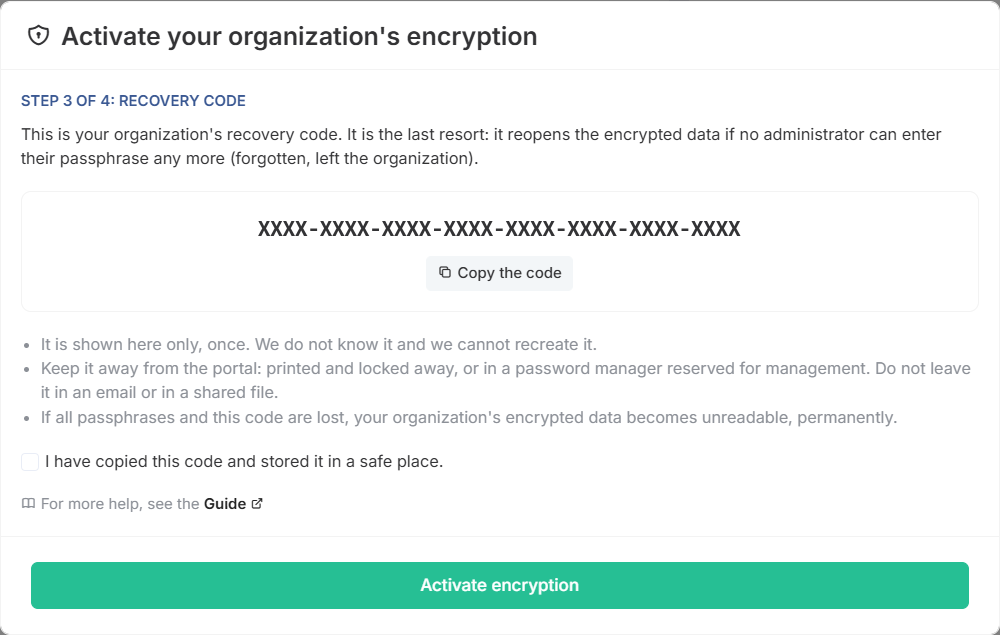
If all the passphrases and the recovery code are lost, your organization’s encrypted data becomes permanently unreadable.
Step 4: encryption of the existing data
The people and groups saved before activation are still readable by our servers. Your browser encrypts them in batches, and the portal stays locked as long as any remain.
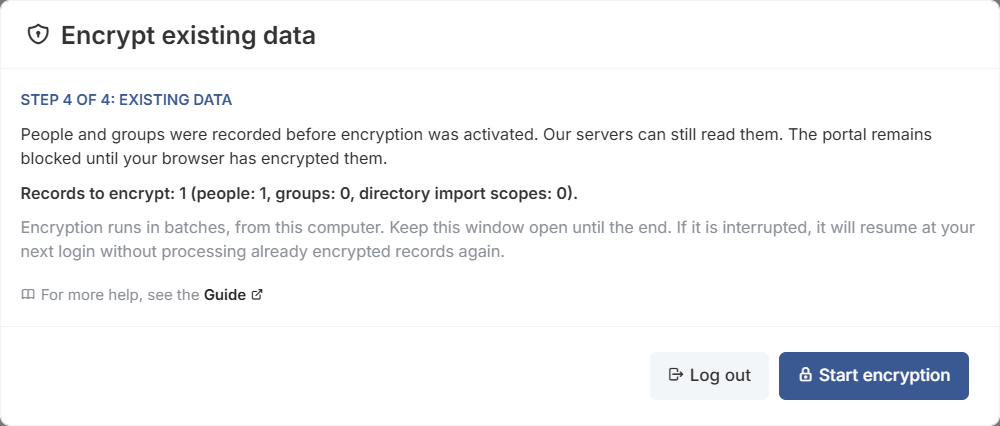
Two kinds of records stay unencrypted:
- those the browser cannot encrypt: they are listed with their reason and the portal stays locked. Send the list to our support;
- that of a person also linked to another organization, so that this organization can still read it. It does not lock the portal.
Right after activation
You are then the only person able to sign in. In order:
- Install the Bexxo Protected agent and enroll it with the agent’s passphrase.
- Register the SMTP server of your organization: the agent uses it to send your emails.
- Check the encryption keys in People: without a key, a sign-in is refused. The people you invite receive their temporary passphrase by email, sent by the agent. For those who already had an account, use Give an encryption key.
What changes at every sign-in
The portal asks for the passphrase after the password and, for an administrator, after the code from their authenticator app. Until it is entered after sign-in, it stays locked: our servers send no page and no data of your organization.
The passphrase is not sent to our servers. Your browser uses it to unlock the data key, then proves to our servers that it holds it, without transmitting it.
Troubleshooting
| Symptom | Likely cause | What to do |
|---|---|---|
| The wizard does not appear | The option is not yet opened for your organization, or your account is not its administrator. | Ask Bexxo to open it, or sign in with the administrator’s account. |
| The app’s code is refused | The phone’s time is off, or the code has expired. | Set the phone’s time to automatic, then enter the next code. |
| The encryption window closed before it finished | Tab closed, network interruption or expired session. | Sign in again and restart the encryption: records already encrypted are not reprocessed. |
| A person can no longer sign in | They do not yet have an encryption key. | Give them a key in My organization › People and groups › People. |
Didn’t find the answer? Contact us