
Help PhishTrainer: setup
Allow PhishTrainer in Microsoft 365 Defender
Purpose
For the phishing simulation emails sent by PhishTrainer to actually reach your users, they must not be blocked or filtered by Microsoft 365 mail protection. The configuration is done entirely on the Office 365 side, by declaring Bexxo's sending domains and sending IP addresses as a trusted third-party phishing simulation (Advanced delivery).
Prerequisite: a Microsoft 365 administrator account with permissions on the security portal (Security Administrator role or equivalent).
Procedure
- Sign in to security.microsoft.com/advanceddelivery with your administrator account.
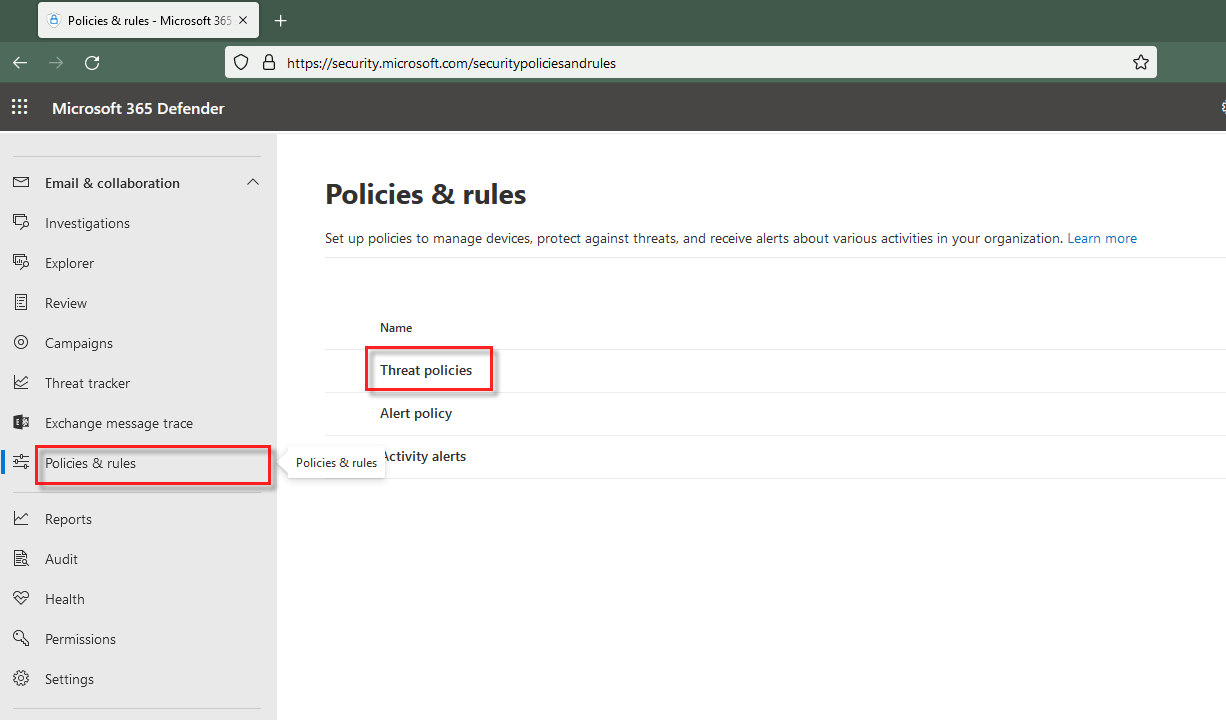
- In the left menu, click “Policies & rules”.
- Then click “Threat policies”.
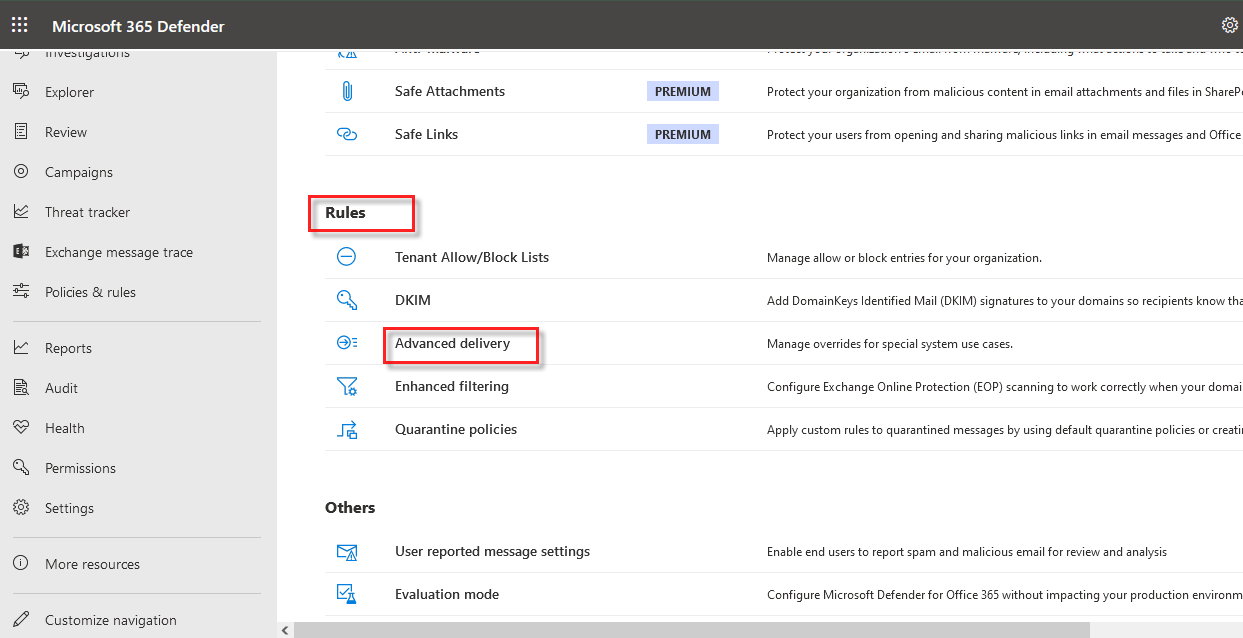
- Scroll down and click “Advanced delivery”, in the Rules section.
- Once in Advanced delivery, click the “Phishing simulation” tab.
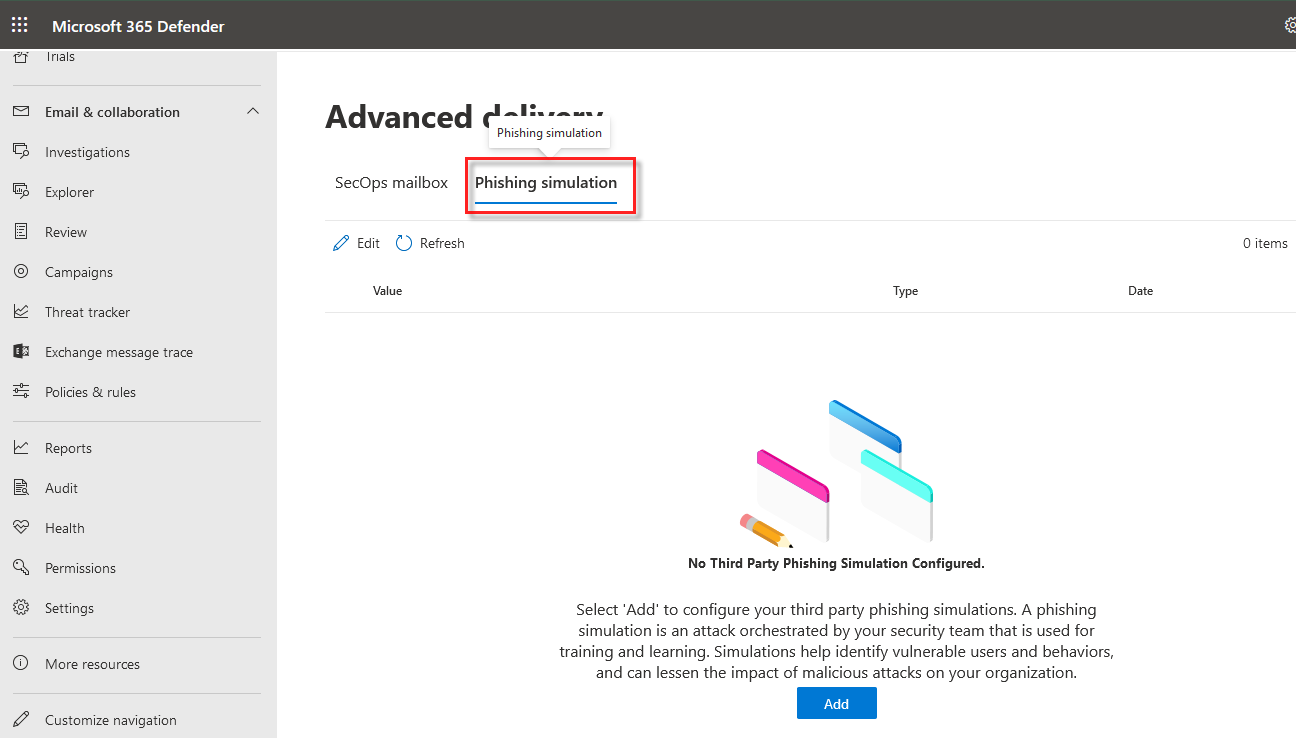
- Click the “Add” button.
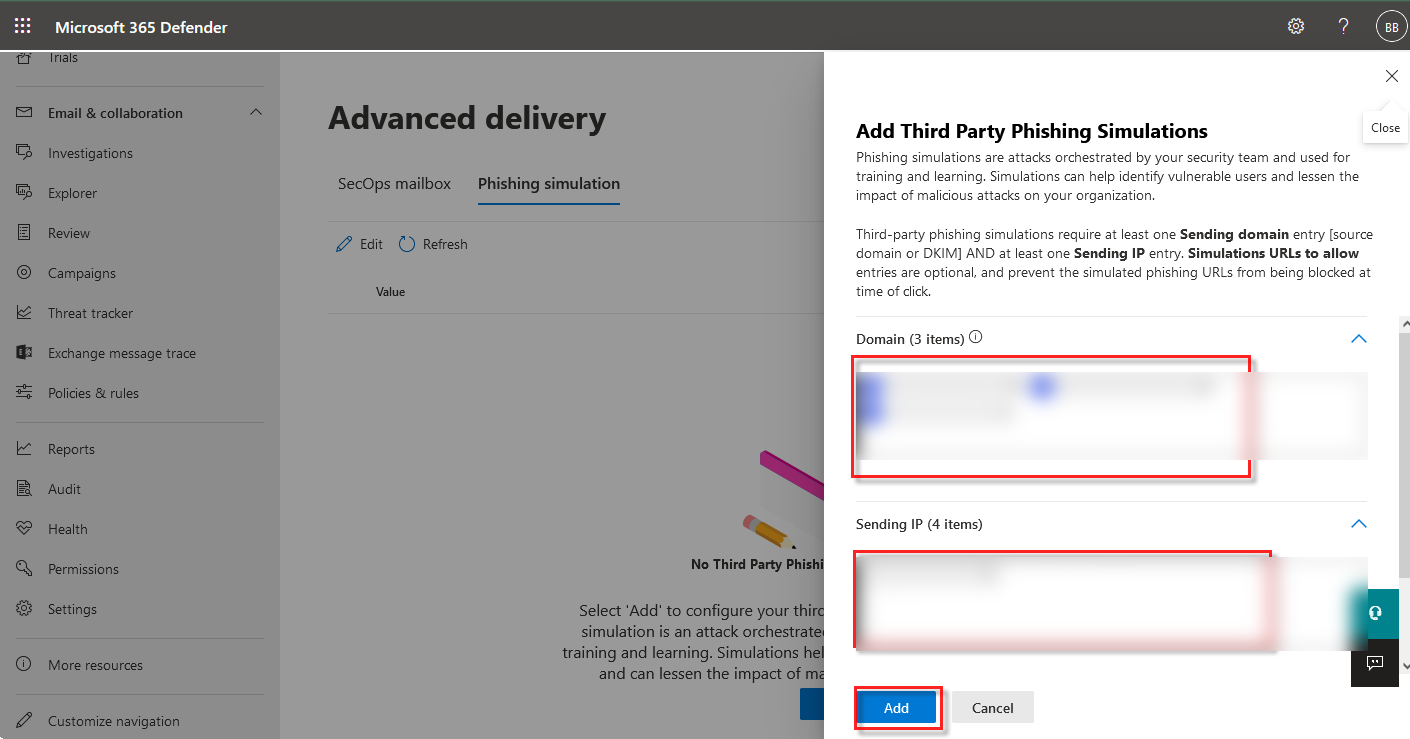
- A pane slides in from the right of your screen. Enter all the domains and sending IP addresses used by your PhishTrainer campaigns, listed below.
Values to allow
Campaigns are sent through Infomaniak. Enter all the domains in the Domain field (Sending domain) and all the ranges in the Sending IP field. Click a value to copy it, or click “Copy all”.
Microsoft requires at least one domain and at least one IP address to save the rule.
Check the configuration
- Once you have added the domains and the IP addresses and closed the pane, each domain and each IP address is displayed as a separate rule in the Phishing simulation window. The configuration is complete.
Procedure created from the Microsoft documentation: Configure the advanced delivery policy for third-party phishing simulations.
Didn’t find the answer? Contact us